
import garmin history
Import your full Garmin history, step by step
Your live Garmin connection only streams recent training — the years behind it arrive in one ZIP file. Here is how to request it, import it, and what your plan does with it.
Why your history needs a file when Garmin is already connected
Connecting your Garmin account starts a live feed: new workouts land in PaceBeats shortly after you save them, along with wellness data like sleep and resting heart rate. What the live connection cannot carry is the years of training behind you — Garmin only streams your recent weeks. Your training years come through Garmin's own "Export Your Data" archive, and importing that file is what this walkthrough covers.
The history is worth the small effort. Your thresholds — FTP, run pace, swim CSS — get measured from what you have actually done rather than estimated from a questionnaire. Training load only means something once there are months of sessions behind it, and your season plan is built to fit the athlete you are, which is hard to read from a few weeks of files.
Until your history lands, your plan runs on a starter profile: real and usable, but deliberately conservative. The import replaces it with your own numbers. You will spend about two minutes actually doing things — the rest is waiting for Garmin's email and letting the import run on its own.
Before you start: the "Historical Data" switch
If Garmin is not connected yet, do that first: Settings → Connections → Connect Garmin. You authorize PaceBeats on Garmin's site — your Garmin password is never shared with us.
One switch on Garmin's authorization screen deserves attention: Historical Data. It arrives switched off, and it controls whether Garmin sends any past training over the live connection.

The export file you are about to upload works either way — it is your account's own archive, not part of the API permissions. But with the switch on, Garmin also backfills your recent weeks over the live connection, so there is no gap between where the archive ends and today. If you connected in the past with it off, there is no setting inside Garmin Connect to flip later — the fix is to reconnect from Settings → Connections, this time with Historical Data on. PaceBeats shows a "Reconnect with history" prompt when it detects this.
Step 1 — Request your export from Garmin
Go to Garmin's Export Your Data page and sign in with your Garmin account. Look for the black Request Data Export button and confirm your email address.

That is the entire request. Garmin assembles the archive and emails you a download link — usually within a few hours, sometimes a day or two. This wait is the longest part of the whole process, which is why it pays to request the file early: PaceBeats suggests it during onboarding for exactly this reason.
Nothing is on hold while you wait. Your starter plan keeps working and new workouts keep syncing over the live connection.
Step 2 — Download the ZIP, and leave it alone
When Garmin's email arrives, download the archive. It is a single ZIP file; a long training history comes to a few hundred megabytes, most of it the second-by-second files your watch saved for every session.
Upload it exactly as Garmin sent it. Do not unzip it, re-zip it, or pull files out of it — the import reads everything it needs from the archive as is.
Step 3 — Upload it to PaceBeats
The import lives in three places, and they all lead to the same panel:
- Settings → Connections, inside the Garmin Connect card, under "Import your Garmin history"
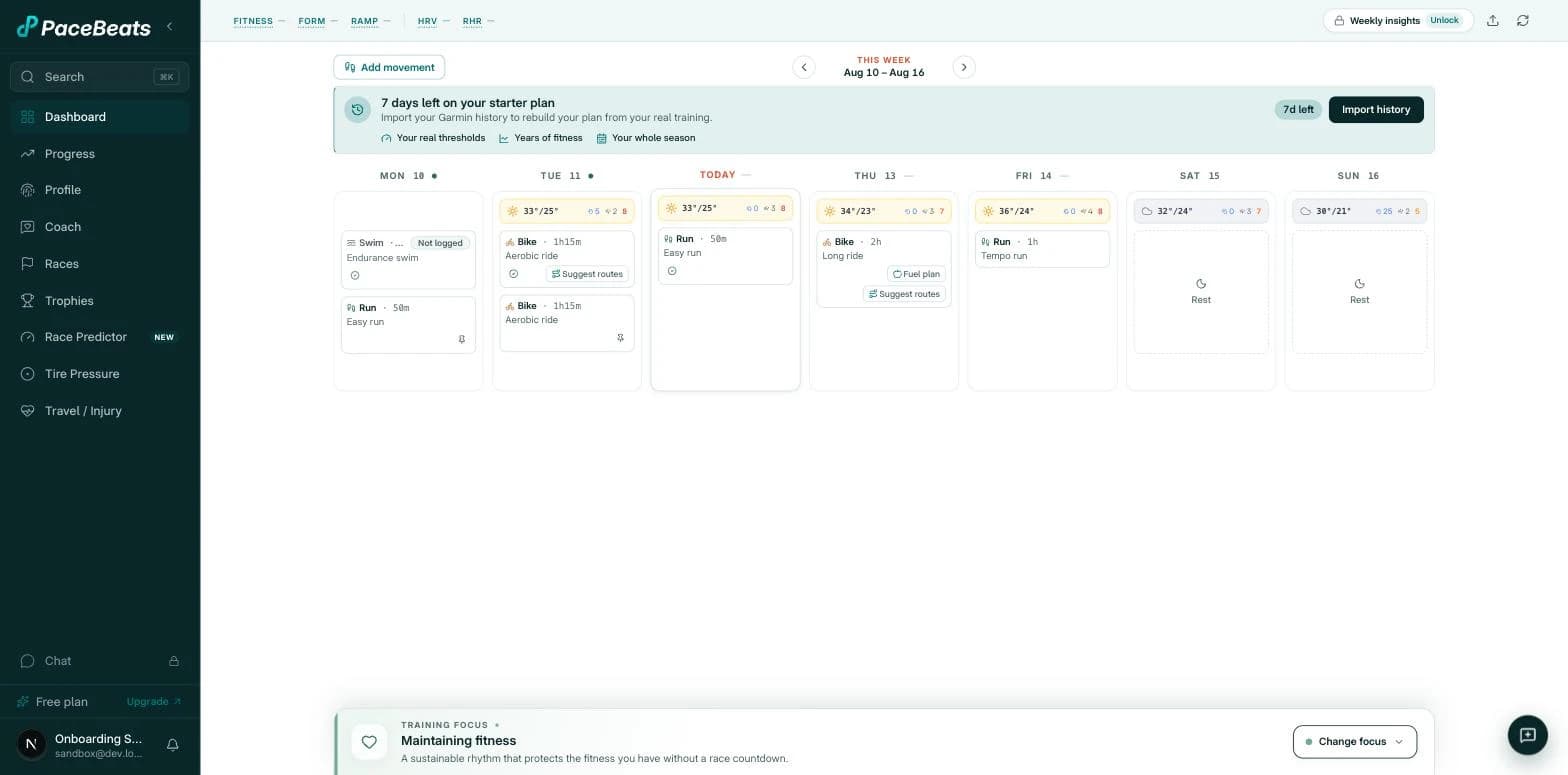
- The dashboard banner — "Import your Garmin history to rebuild your plan from your real training" — and its Import history button
- The history hint on the Metrics page
The Settings version walks you through the same three request steps and ends in the upload area:
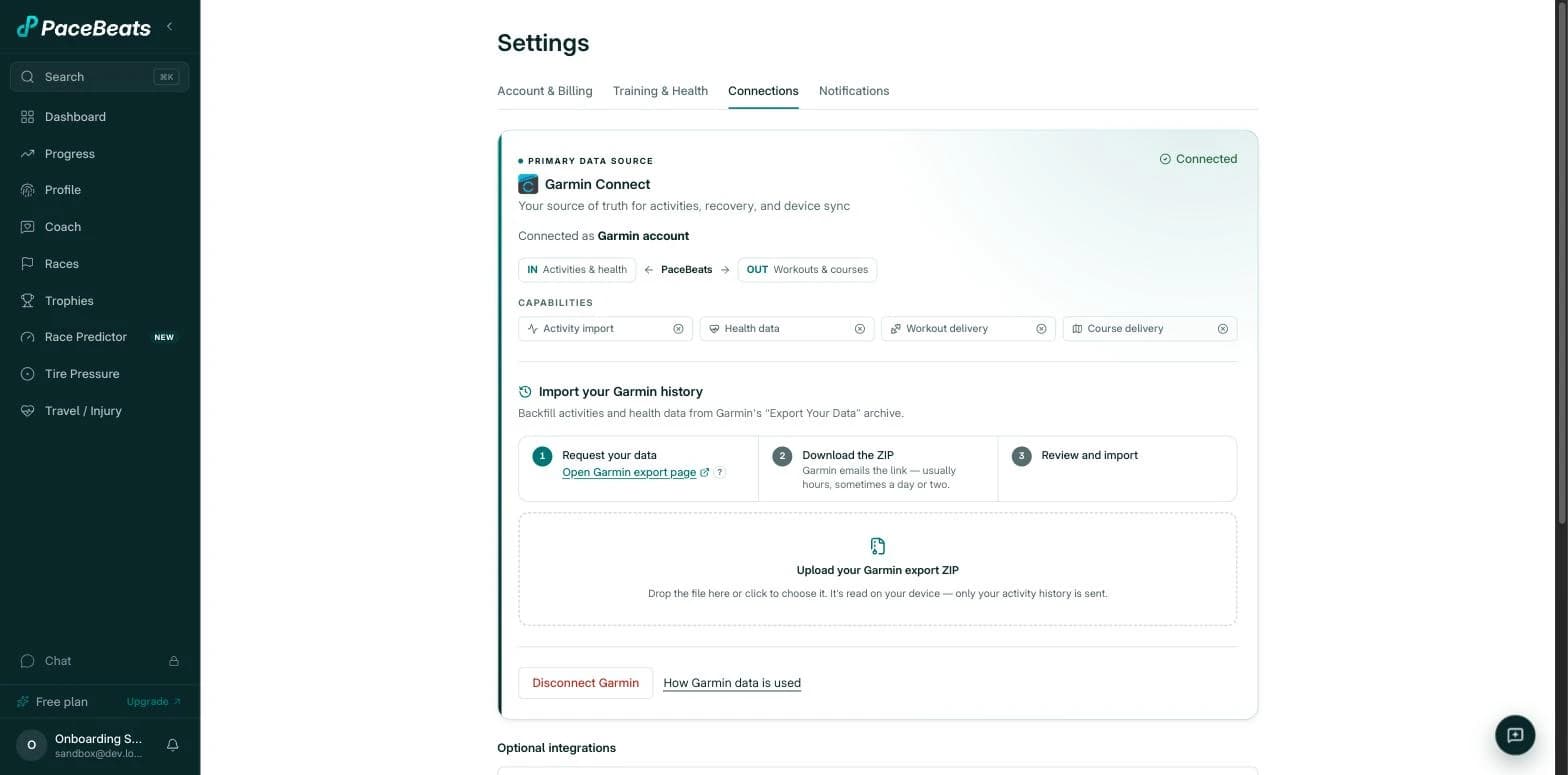
Drop the ZIP on the upload area, or click it and pick the file. The archive is read on your device first — at this point nothing has been sent anywhere.
Step 4 — Review before anything is sent
Once your browser has scanned the archive, you get a confirmation card: how many activities are ready to import and the date span they cover. Workouts PaceBeats already has from the live connection are recognized and skipped — duplicates are not imported twice.
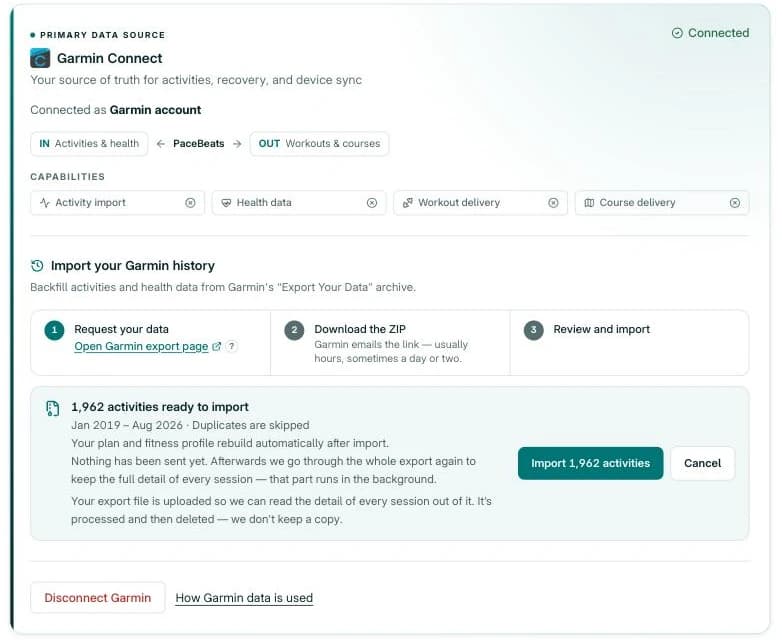
The card also states, before anything leaves your device, what is sent and what happens to the export file itself. Nothing is uploaded until you press Import.
Step 5 — Let it run
The import narrates itself in three stages. First "Reading your export…", then "Bringing in your training history" with a live count of records as they arrive, then "Crunching your numbers" once everything is in — thresholds, training load, the lot.
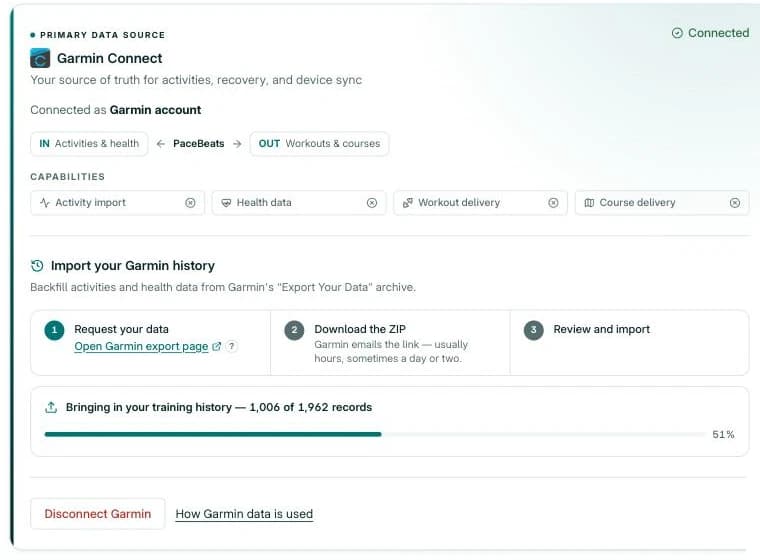
You do not need to babysit it. The screen tells you as soon as it is safe to leave, and a small progress toast follows you around the app while the import finishes on its own. If your connection drops part-way, nothing is lost: upload the same ZIP again and the import continues where it stopped — activities already saved are never imported twice.
What you get when it lands
When the crunching finishes, PaceBeats shows you what it learned:
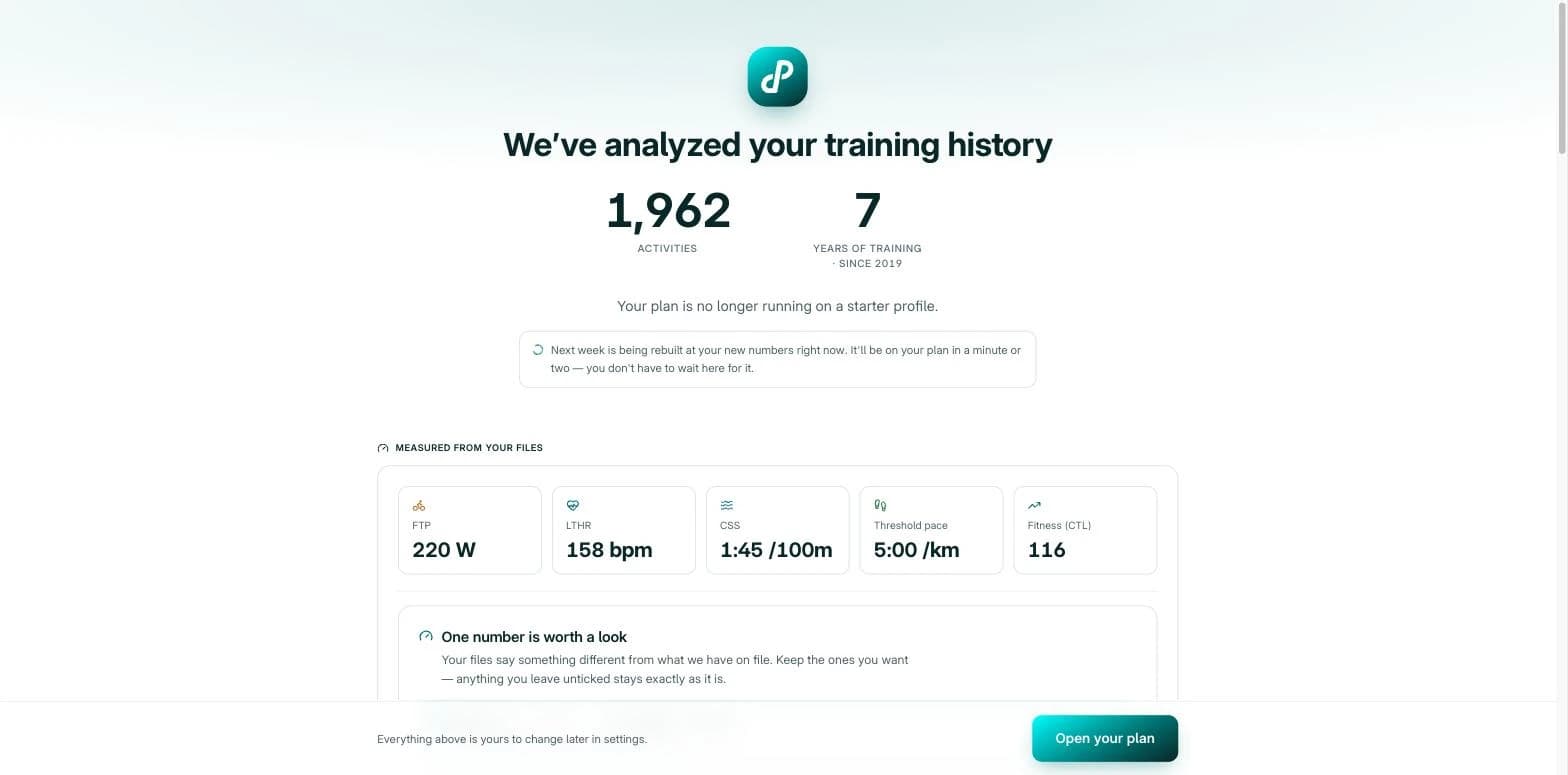
- Measured thresholds. FTP, run threshold pace, and swim CSS read from your actual training, each one shown for you to review.
- Your last twelve months, in one line. The training-load trend rebuilt from real sessions, so form and fatigue finally have context.
- Career records. Your bests, pulled from the whole archive.
- The week your plan is built to fit. A review of your typical training week, which you can adjust on the spot.
Your plan is no longer running on a starter profile. The current week keeps its structure so you are not mid-week surprised, and the fully rebuilt plan starts the following Monday — with the numbers behind this week's remaining sessions updated to match your measured thresholds.
If something goes wrong
| What you see | What it means | What to do |
|---|---|---|
| "This doesn't look like a Garmin 'Export Your Data' archive" | The ZIP is something else — often a single-activity export or a re-zipped folder | Request the full archive from Garmin's Export Your Data page and upload it unmodified |
| "Could not open this file" | The file was changed or the download did not finish | Download the archive again from Garmin's email and upload it exactly as it arrived |
| "Connect Garmin first" | The import matches your archive against what your devices sync, so the live connection has to exist first | Connect Garmin in Settings → Connections, then upload |
| "Your import stopped part-way" | The upload was interrupted | Upload the same ZIP again — it continues from where it stopped |
If Garmin's email never arrives, check the spam folder first, then request the export again — requests occasionally expire quietly on Garmin's side.
Questions athletes ask
How long does Garmin take to send the export?
Usually a few hours, sometimes a day or two. Garmin emails you a download link when the archive is ready. Requesting it early is the single best way to speed up the whole process — the import itself takes minutes once you have the file.
Do I have to keep the tab open while the import runs?
Only while the upload itself is in progress — the screen tells you as soon as it is safe to leave. The analysis afterward runs on PaceBeats' side, and a progress toast follows you around the app until everything is finished.
Will I get duplicate workouts if I upload the archive twice?
No. Activities that are already in PaceBeats — from the live Garmin connection or from an earlier upload — are recognized and skipped. Re-uploading the same ZIP is also how you resume an interrupted import.
What is actually sent to PaceBeats?
Your browser reads the archive on your device and sends your activity history. Before anything is uploaded, the confirmation card states exactly what is sent and what happens to the export file itself — nothing leaves your device until you press Import.
Does importing change the week I am currently training?
Your current week keeps its structure, so nothing you planned this week disappears. The fully rebuilt plan starts the following Monday, and the numbers behind this week's remaining sessions are updated to match your measured thresholds.
Next step