
zwift activities in pacebeats
Get your Zwift rides into PaceBeats, step by step
Your Zwift rides land in Garmin Connect, but Garmin does not pass them on to connected apps. Here is the two-minute workaround: download the FIT file from Zwift and upload it to your dashboard.
Why your Zwift rides are missing when Garmin is connected
Zwift can send every ride and run to Garmin Connect, and if you have set that up, the ride shows in Garmin Connect a minute after you save it. So it is reasonable to expect it to show in PaceBeats too — your Garmin connection carries everything else.
It does not, and the reason is on Garmin's side. Garmin only passes on to connected apps the activities that a Garmin device recorded. An activity that arrived in Garmin Connect from another app — Zwift, TrainerRoad, MyWhoosh, Rouvy, or a file you uploaded by hand — stays inside Garmin Connect. Garmin does this on purpose, to stop an activity bouncing between apps in a loop. There is no setting in Garmin Connect or in PaceBeats that changes it.
We checked this against real accounts. In one athlete's first month, the Garmin connection delivered all 28 activities recorded on a Forerunner and an Edge, and none of the 8 Zwift rides that Garmin Connect held for the same weeks. Same account, same permissions.
The good news is that Zwift keeps the full FIT file for every activity, and PaceBeats accepts FIT files directly. The whole workaround is: download the file from Zwift, drop it on your dashboard. Under a minute per ride once you have done it once.
If you recorded the Zwift ride on a Garmin device at the same time — an Edge or a watch paired to the trainer — you do not need any of this. That recording is a device activity, and it arrives over your Garmin connection like any outdoor ride.
Step 1 — Open the ride on Zwift's website
Sign in at zwift.com and open My Feed from the top navigation. This is your Activity Feed: one card per ride or run, newest first.
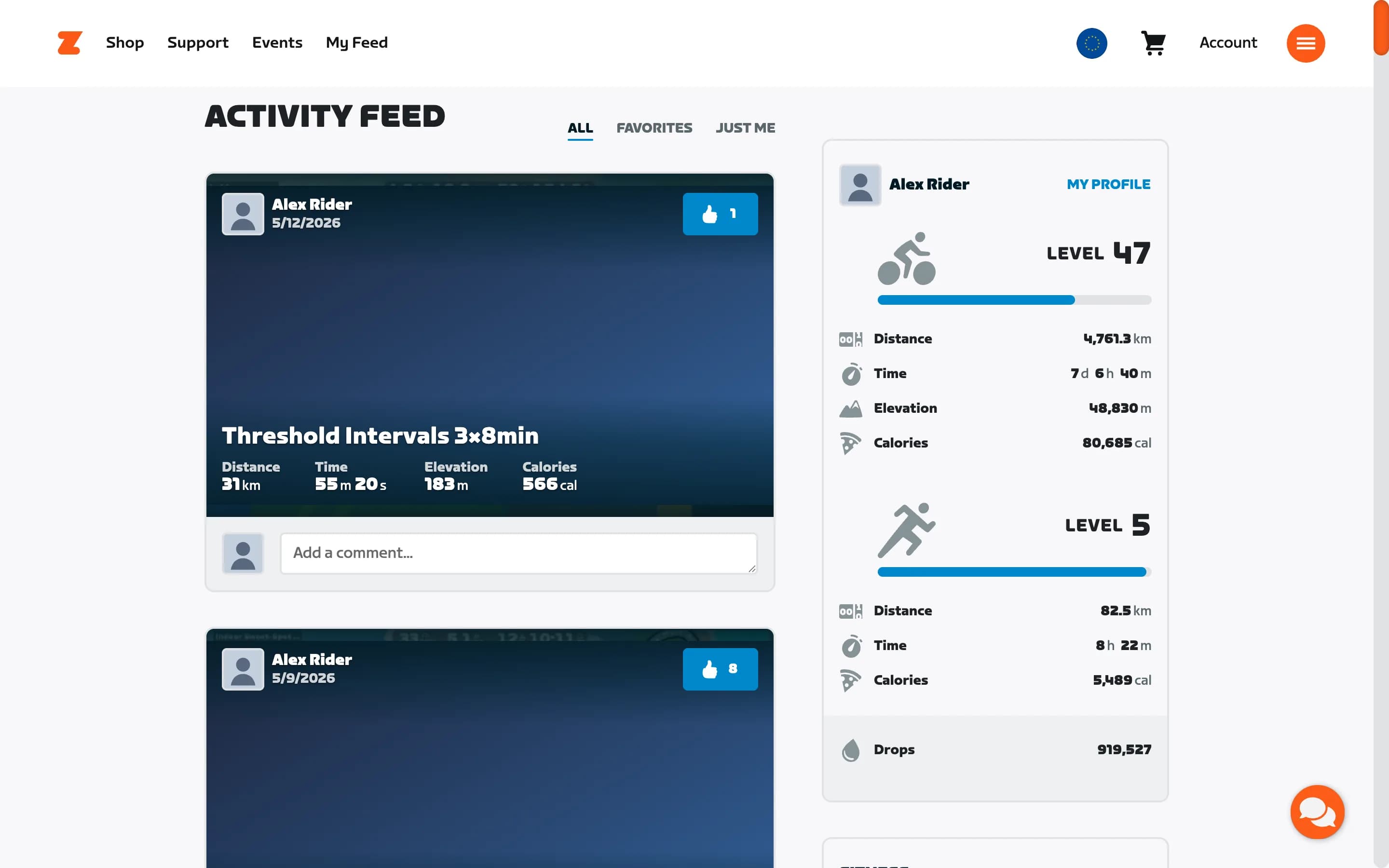
Click the card of the ride you want. The Zwift Companion app on your phone does not offer the file download, so use a browser on a computer or a tablet for this part.
Step 2 — Open the activity settings
The activity page shows the route map, the summary, and the achievements from that ride. Look at the top of the summary panel on the left: to the right of the "CYCLING ACTIVITY" label there is a small gear icon.
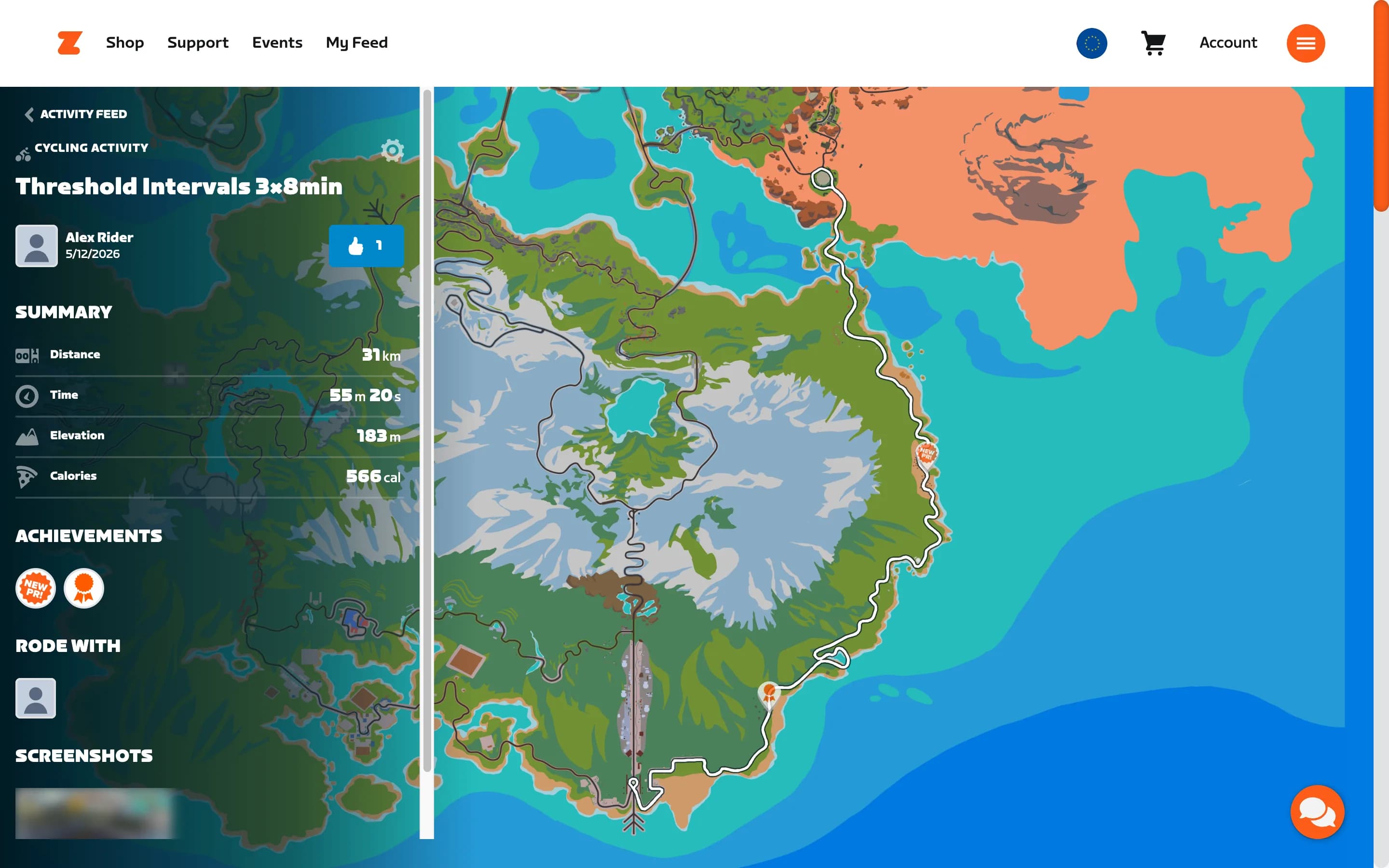
Click the gear. A dialog titled ACTIVITY SETTINGS opens.
Step 3 — Download the FIT file
At the bottom of the dialog, under Fit File, there is a button labeled DOWNLOAD FIT FILE. Click it and the file saves to your downloads folder.
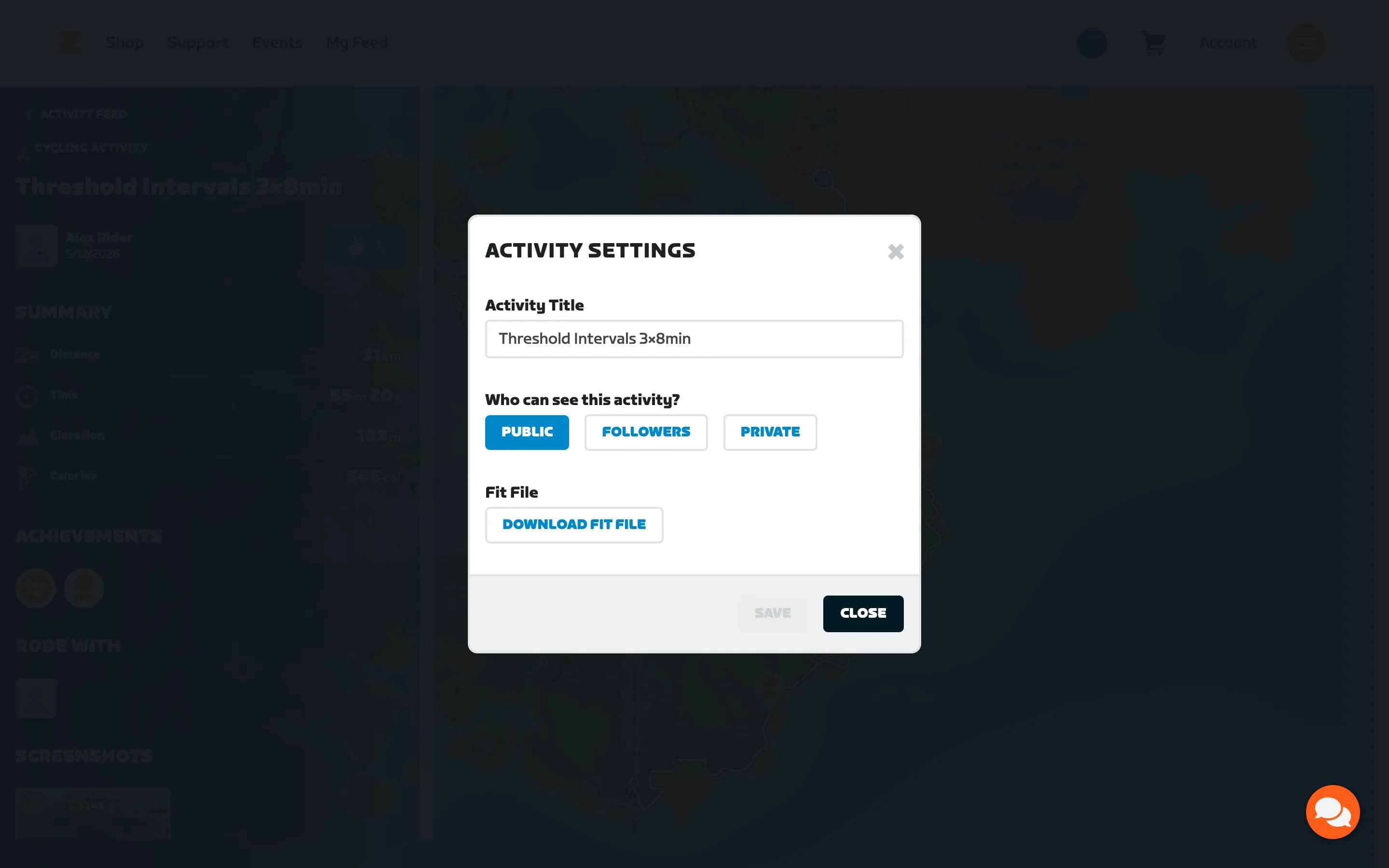
The file is small — a one-hour ride is usually well under 1 MB — and it carries everything the ride recorded: power, heart rate, cadence, speed, and the full second-by-second timeline. That is more than Garmin Connect shows for the same ride, so nothing is lost by going this route.
Close the dialog with CLOSE when you are done. You do not need to change the title or the visibility.
A shortcut if Zwift runs on your computer
Zwift keeps a local copy of every activity file on the computer that runs it. Open Documents/Zwift/Activities — the same place on Windows and on a Mac — and you will find one .fit file per session, named by its date and time, for example 2026-08-27-18-04-12.fit. The newest file is the ride you just finished, and it is the same file the website would give you.
If you ride on a laptop or a desktop, this replaces steps 1 to 3: skip the website and upload straight from that folder. If you ride on Apple TV, an iPad, or a phone, that folder is out of reach, so the website download above is your route.
Step 4 — Upload it to PaceBeats
Open your PaceBeats dashboard on a computer. In the header, at the top-right, there is a row of icons after the Weekly insights button. The first one is an upload arrow.

Hover it and the tooltip reads "Import an activity recorded outside Garmin (.fit, .tcx or .gpx)". Click it, pick the FIT file you downloaded, and the upload starts at once.
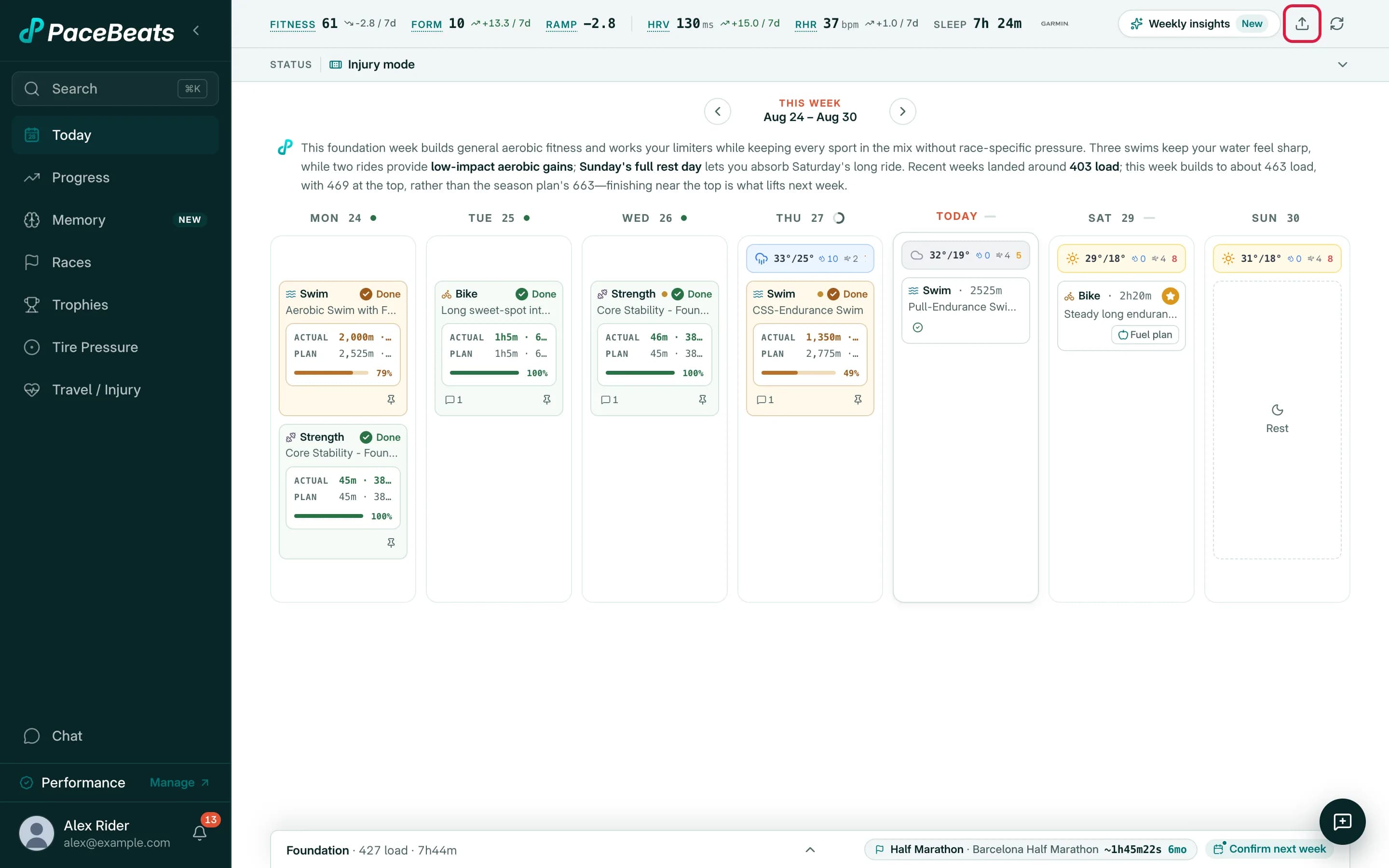
A few seconds later a toast confirms it: Activity uploaded. If the ride matches a planned session on that day, the toast says "Imported and linked to your planned workout." and the card on your week view flips to Done with the actual numbers next to the plan. If there was no planned session, the toast says "Your activity file was imported." and the ride appears on its day as a completed activity.
The upload button is in the desktop header only. On a phone, open the dashboard in a desktop browser — or save the file on the phone and upload it later from a computer.
What PaceBeats does with the file
The file is read the same way a Garmin activity is. PaceBeats works out the sport from the file — a Zwift ride becomes a bike session, a Zwift run becomes a run — and prices its training load from your power, heart rate, and duration against your current thresholds. That load goes into your fitness, fatigue, and form like any other session, and the coach sees the ride when it plans your next week.
If the file does not say which sport it was, PaceBeats saves the activity and then asks you which sport to file it under. Pick the sport in the dialog that opens and the load is priced for that sport.
Weather is skipped for Zwift rides. The GPS track inside a Zwift file describes a virtual world, so there is no real place to look up.
Doing this regularly
Most athletes who train indoors do two or three Zwift sessions a week, so this becomes a small habit: finish the ride, download the file, drop it on the dashboard. Doing it the same day keeps your week view accurate and lets the coach react to the session when it plans tomorrow.
If you would rather batch it, there is a second route. Garmin's "Export Your Data" archive does include activities that came from Zwift, because it is a copy of everything in your Garmin Connect account, not a live feed. Uploading a fresh archive every few weeks brings in every Zwift ride from that period in one go — see Import your full Garmin history for how to request the archive. The trade-off is the wait: Garmin takes hours to days to prepare the file, so the ride-by-ride upload is the better fit for staying current.
One thing to know if you mix the two routes: a ride you uploaded as a FIT file and the same ride arriving later inside a Garmin archive are not recognized as the same activity, so it can appear twice on that day. If that happens, open the extra one and delete it. Rides that arrive over the live Garmin connection and inside an archive are matched and never duplicated — this only concerns files you uploaded by hand.
If something goes wrong
| What you see | What it means | What to do |
|---|---|---|
| "File too large — Activity files must be under 12 MB." | The file is above the size limit, which is rare for a Zwift FIT file | Check that you downloaded the FIT file and not a video or a screenshot from the same page |
| "Could not read that file" | The browser could not open the file | Download it again from Zwift's Activity Settings and try once more |
| "This activity file has no recorded duration." | The file is empty or was cut short — usually a ride that was saved with no time on the clock | Nothing to import from this file; check the ride in Zwift |
| The ride appears twice on one day | You uploaded the same file twice, or the ride also arrived inside a Garmin archive | Open one of the two and delete it |
| A dialog asks which sport the activity was | The file does not name a sport | Pick the sport; the activity is already saved and is re-priced for that sport |
| No upload icon in the header | You are on a phone-sized screen | Open the dashboard on a computer, or widen the browser window |
Why we do not sync with Zwift directly yet
A direct Zwift connection would remove this step, and we are looking at it. Until then, the FIT upload is the honest route: it brings in the same data a direct connection would, it works today, and it costs you about thirty seconds per ride. If your Zwift sessions also go to another platform, that does not help here either — PaceBeats only reads activities from your Garmin connection and from files you upload.
If you have a question this page does not answer, write to us from the feedback button in the app. Zwift questions are the most common one we get about indoor training, and every one of them helps us decide what to build next.
Questions athletes ask
Why don't my Zwift rides show in PaceBeats when Zwift syncs to Garmin?
Garmin only passes on activities recorded by a Garmin device to connected apps. A ride that arrived in Garmin Connect from Zwift stays inside Garmin Connect and is never sent to PaceBeats. This is Garmin's rule, not a setting you can change. Download the FIT file from Zwift's website and upload it on your PaceBeats dashboard instead.
Where do I download the FIT file for a Zwift ride?
On zwift.com, open My Feed, click the ride, then click the gear icon next to the CYCLING ACTIVITY label. In the Activity Settings dialog, under Fit File, click Download FIT File. The Zwift Companion phone app does not offer this download, so use a browser on a computer.
Where is the upload button in PaceBeats?
On the dashboard, in the header at the top-right, after the Weekly insights button. It is an upload-arrow icon with the tooltip 'Import an activity recorded outside Garmin (.fit, .tcx or .gpx)'. It is shown on desktop-sized screens; on a phone, open the dashboard in a desktop browser.
Does an uploaded Zwift ride count toward my training load?
Yes. PaceBeats reads the power, heart rate, and duration from the file and prices the ride against your current thresholds, exactly as it does for a Garmin activity. The load goes into your fitness, fatigue, and form, and the coach sees the ride when it plans your next week.
Can I bring in many Zwift rides at once?
Yes, through Garmin's Export Your Data archive, which includes activities that came from Zwift. Request it from Garmin, wait for the email, and upload the ZIP in PaceBeats under Settings → Connections. It takes hours to days for Garmin to prepare, so for keeping the current week accurate the per-ride FIT upload is faster.
Next step